In this user manual we highlight the features and options in ZSS Login desktop to help users interact with the geographical password system for their online security.
Earth's View
When you go to zss.net/login, you will see planet Earth divided into rectangular shaped geographical areas. Each rectangle represent a geographical password. You can select the rectangle by clicking it, it will be shaded when selected. You can choose more than one location to form your strong geographical password.
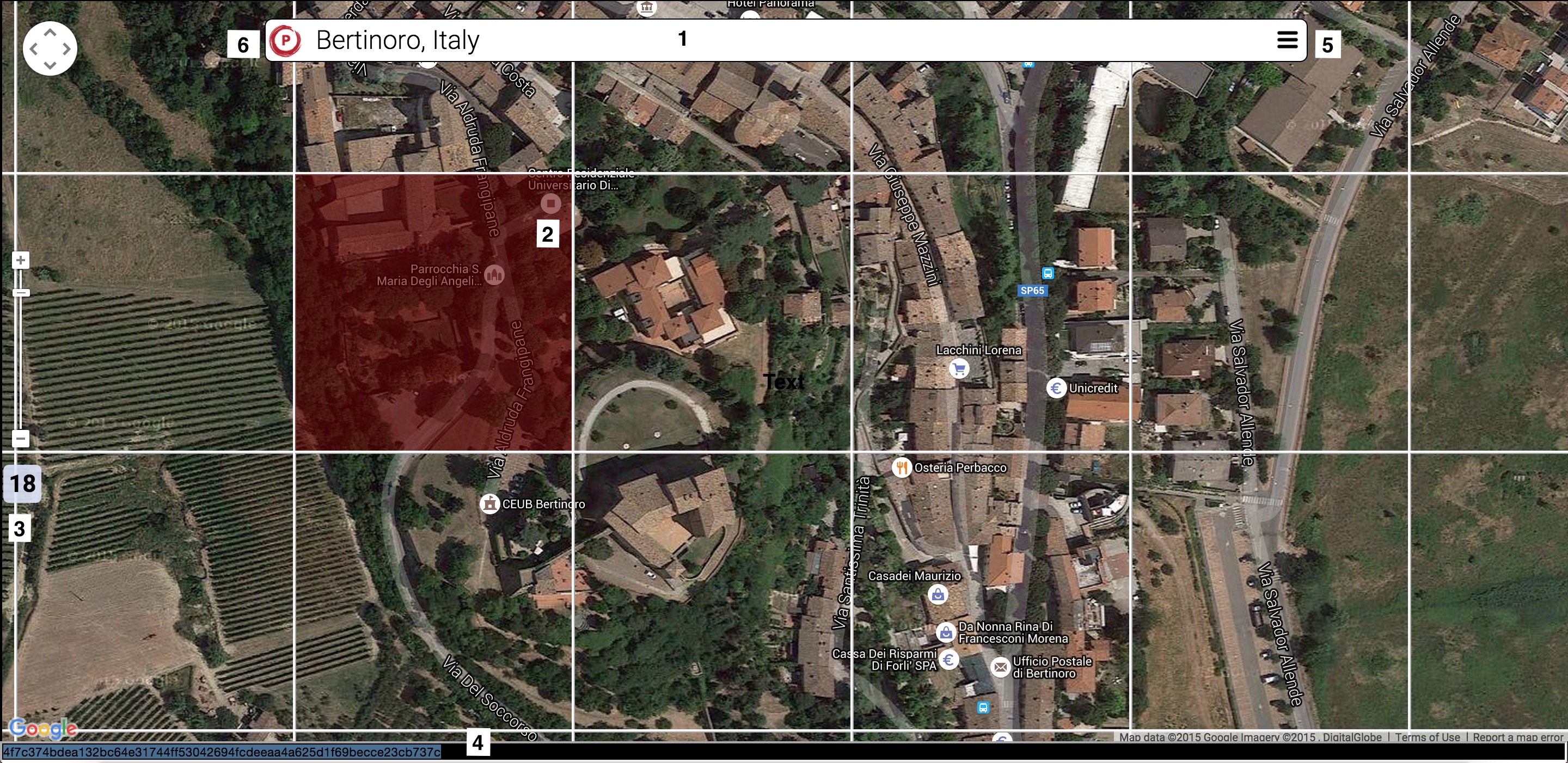
Earth's View description:
- Search box: You can enter Cities, Countries , Makaney Code, longitude/latitudes, or any address to locate your favorite geographical location.
- Geographical location: A rectangular shaped geographical area selected by the user by clicking the area and selecting it as her geographical location. Users can select more than one location on planet Earth.
- Current zoom level: When you zoom in or out, the area covered by the rectangle will change. So each rectangle is unique at each zoom level.
- Geographical Password Box: When the user click a geographical location the geographical characteristics of the selected places will be extracted and used to form your strong geographical password, hover the mouse over the black box to display the geographical password.
- Clicking the three lines will open the menu. See next section for menu description.
- Personalization icon, if clicked will open the Personalization View described later in this page.
If key is enabled (i.e. the map is personalized) the icon will be red:

If key is not enabled (i.e. the map is public) the icon will be gray:

Earth's View Menu
In this section we describe the options in ZSS Login Desktop menu.
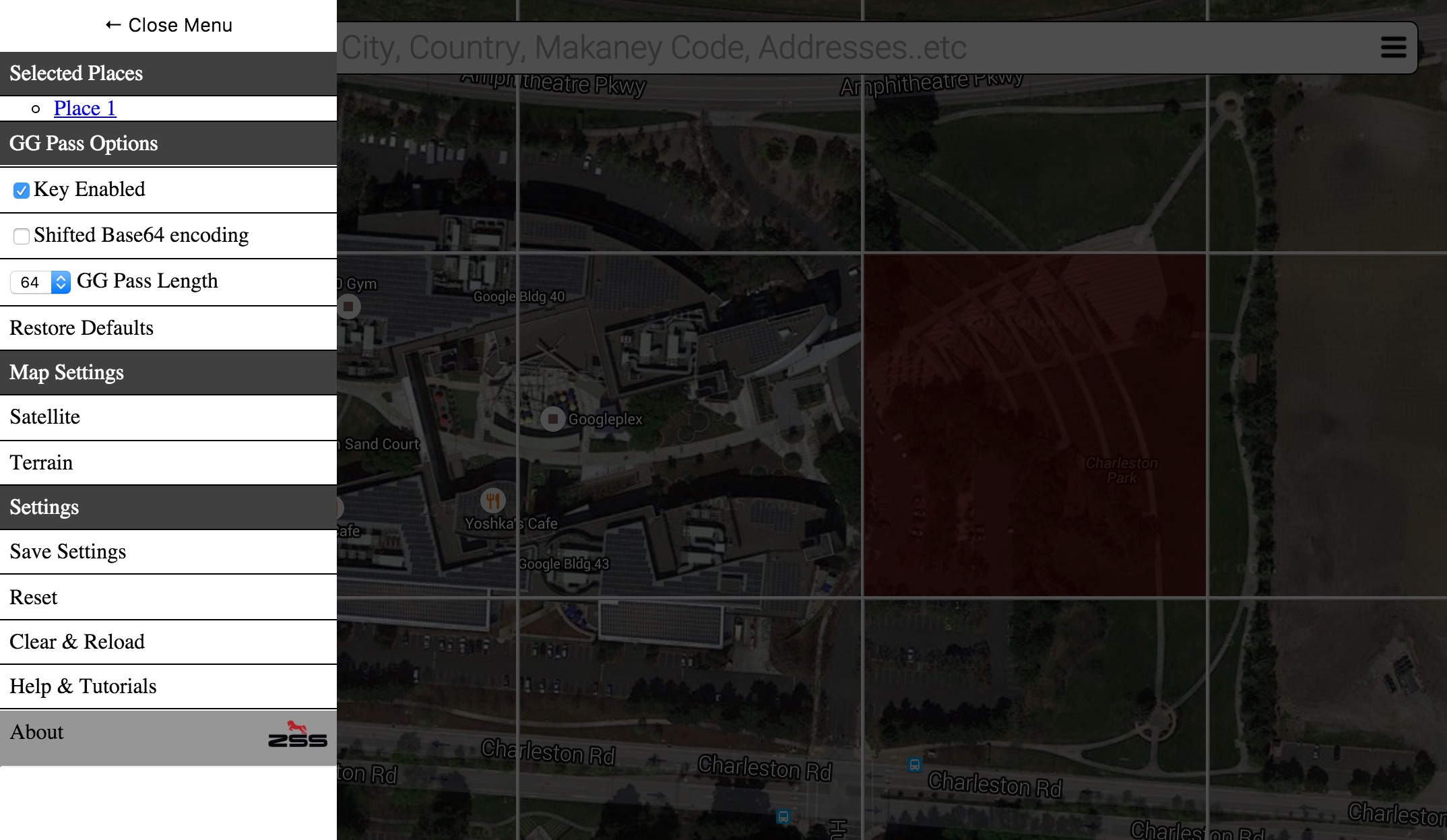
Menu description:
- Selected Places: This section displays the selected places in the order they have been selected. When the user click a geographical location on planet earth, a link to the place will appear. Clicking the link will move the map view to the selected place. This helps the user keep track of the places she selected.
- GG Pass Options: This section displays the settings for the user's geographical password.
- Map Settings: This section displays the settings for the map (ZSS Login is using Google Maps).
- Satellite: displays the map based on satellite information.
- Terrain: displays the map based on terrain information.
- Settings: This section displays other settings.
- Save Settings: Save GG Pass settings and the personal key in browser's cache. So next time when the user visits zss.net/login user's settings will be present (not recommended for public devices). Note: The settings will be cleared if browser's cache is cleared.
- Reset: Clear any saved settings and reload ZSS LOGIN to its defaults.
- Clear & Reload: Removes any GG Pass selection and reload ZSS LOGIN.
- Help & Tutorials: Open's help page on web browser.
Personalize
If the map is not personalized then any selected place(s) on planet earth will result in the same geographical password on any device. For example if person X picked Eiffel tower as her geographical location on her laptop the geographical password generated will be the same as person Y who picks the same place at his iPad. Although this might not seem to be troubling, it will make the user vulnerable to shoulder surfing (i.e. looking over someone's shoulder, to reveal geographical password).
Personalization prevents that and makes the users further protected by making each map unique to each user. For example, if user X and Y picked the same geographical location(s) the geographical password generated will be totally different, even that the place is the same. This makes it safe for your selected geographical location(s) to become known to people who can see your screen, because your map has been personalized.
Personalization happens based on a randomly generated key, unique to each user, which can be generated randomly as described next. If the user needs to personalize a map, she should use this key to make the map personal (see tutorials for demos).
The personalization view takes care of user's personal key settings.
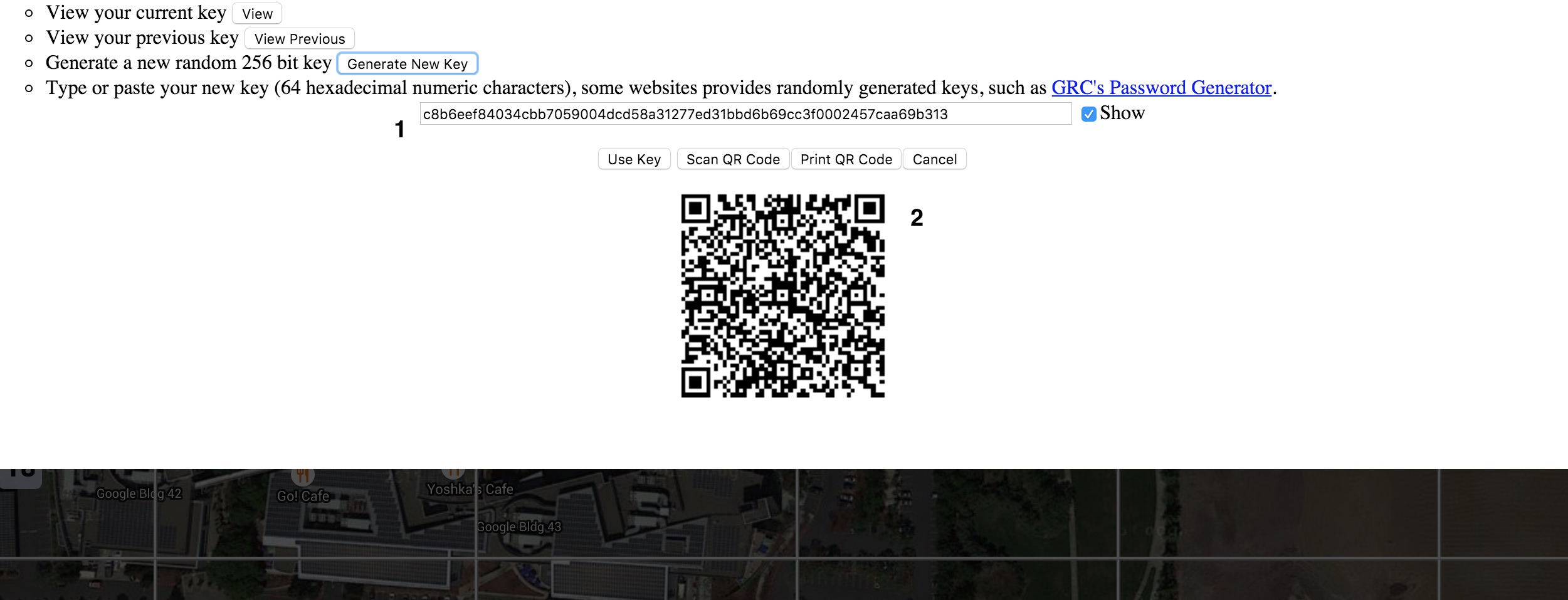
Key options menu description:
- Editable text box (1) to display a key or a geographical password. If the user switch to the personalization view and there is geographical place(s) already selected in the map, the geographical password will be copied into the text box. This allows the user to easily share the password with friends (i.e. Home wireless network..etc ), whom can scan the QR code from their devices.
- QR Code representation (2) of the key or the geographical password displayed in the text box.
- View Key: If clicked displays user's current personal key, the one used to generate a keyed-hash message authentication code (HMAC) based on user selected geographical location(s). Users use this key to personalize maps.
- View previous key: If clicked displays user's previous personal key in the text box. Empty if no key exist.
- Generate new key: If clicked generates a new random 256 bit hexadecimal personal key and displays it in the text box. The generation occurs only at the client side. You can also type or paste your own personal key.
- Show checkbox. If checked, displays the content of the text box and its QR code representation, if not checked hides the content of the text box and the QR code.
- Use Key button, if clicked will use the key displayed in the text box as the user's new personalization key. Only 64 hexadecimal characters acceptable. Key will not be saved and when the user reload ZSS LOGIN the saved original key will be used. To save the key click "Save Settings" from Earth's View Menu.
- Scan QR Code button, opens the device's webcam to scan a QR code representation of a personal key, if successful ZSS LOGIN desktop will be personalized.
- Print QR Code button, prints the QR code. It is always recommended to print your personal key as a backup.
- Cancel button, if clicked will close the view and return to the map.
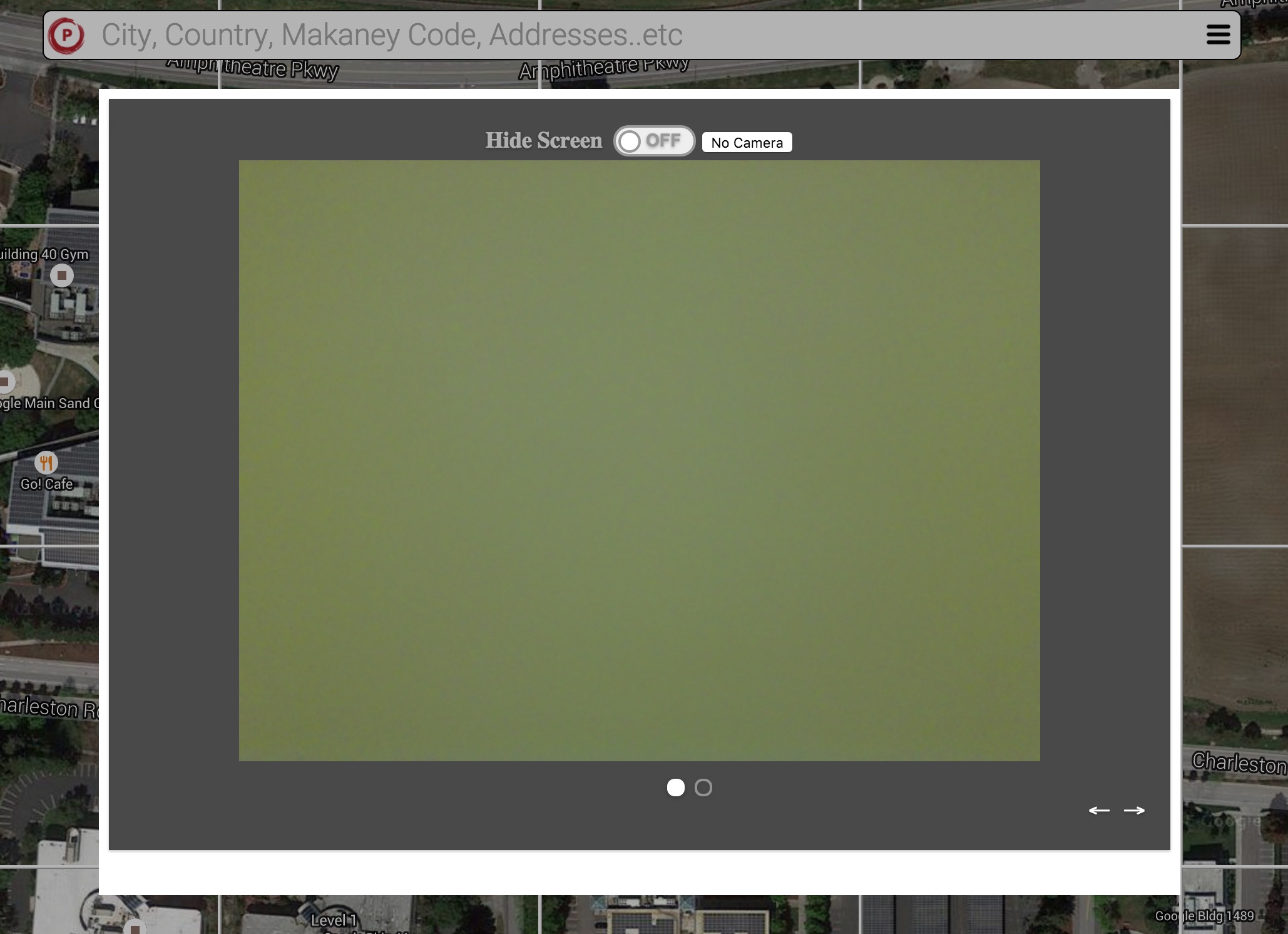
Webcam enabled to scan the user's personal key represented as a QR Code on her desktop/laptop. If successful ZSS LOGIN desktop will be personalized.
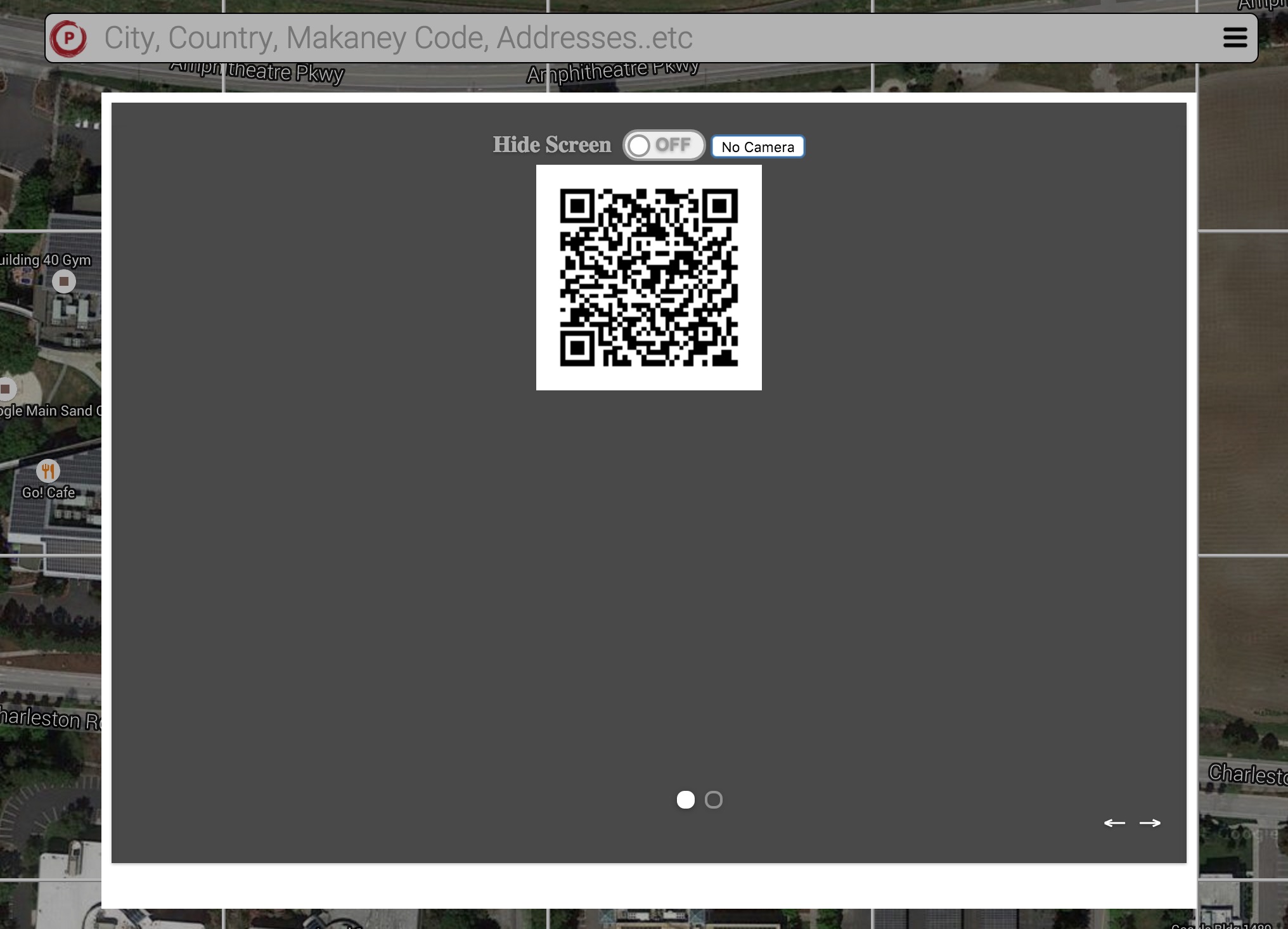
If no webcam exists click No Camera button this will show a QR code to be scanned by ZSS LOGIN smartphone for remote personalization, refer to ZSS LOGIN IOS user manual for details.